Statistics
Use this screen to manage statistics. A fresh Rexpondo installation already contains some statistics by default. The statistics management screen is available in the Statistics menu item of the Reports menu.
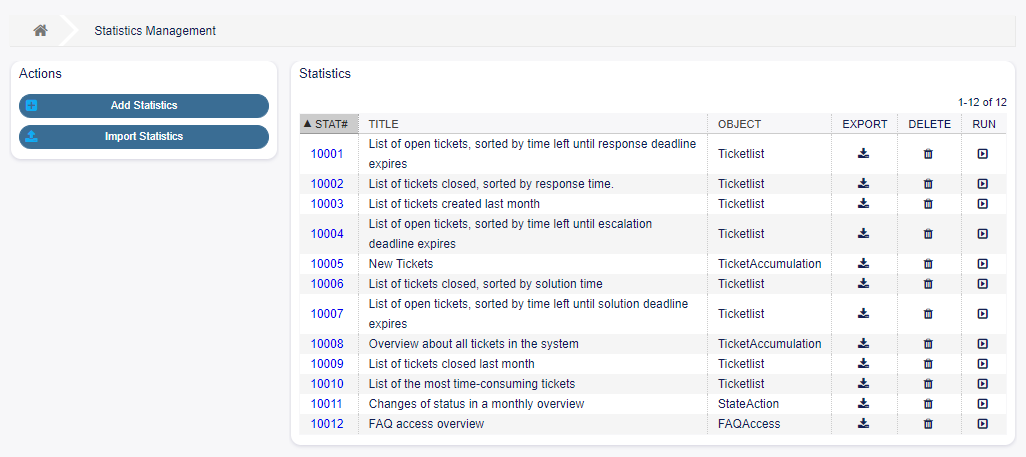
Statistics Overview Screen
Manage Statistics
Three type of statistics are available in Rexpondo.
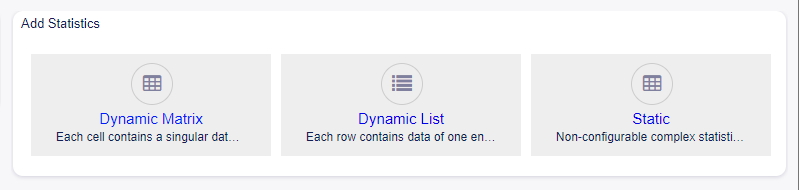
Add Statistics Screen
- Dynamic Matrix
Each cell contains a singular data point.
- Dynamic List
Each row contains data of one entity.
- Static
Non-configurable complex statistics.
To create new statistics:
Click on the Add Statistics button in the left sidebar.
Select the type for the new statistics.
Fill in the required fields.
Click on the Save button.
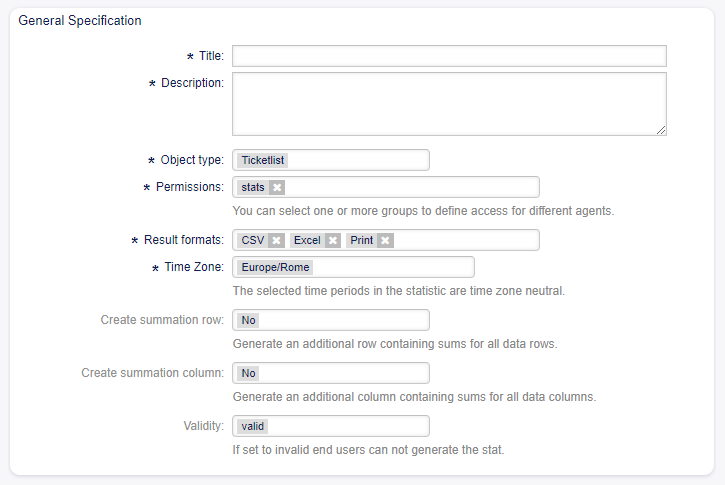
Add General Specification Section
To edit statistics:
Click on a statistics number in the list of statistics.
Modify the fields and the statistics details.
Click on the Save or Save and finish button.
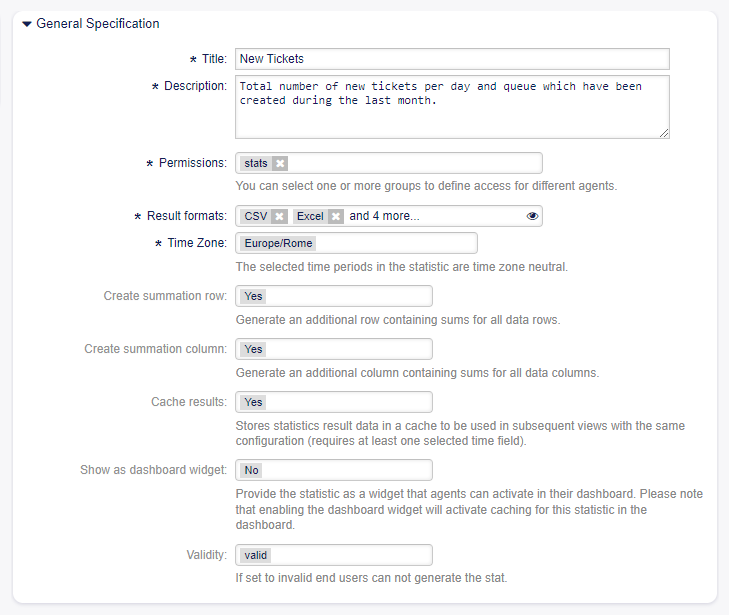
Edit General Specification Section
To import statistics:
Click on the Import Statistics button in the left sidebar.
Click on the Browse… button and select a previously exported
.xmlfile.Click on the Import button.
Modify the fields and the statistics details.
Click on the Save or Save and finish button.

Import Statistics Configuration Screen
To export statistics:
Click on the download icon in the list of statistics.
Choose a location in your computer to save the
.xmlfile.
To delete statistics:
Click on the trash icon in the list of statistics.
Click on the OK button in the confirmation screen.
To run statistics:
Click on the play icon in the list of statistics.
Review the statistics details.
Click on the Run now button.
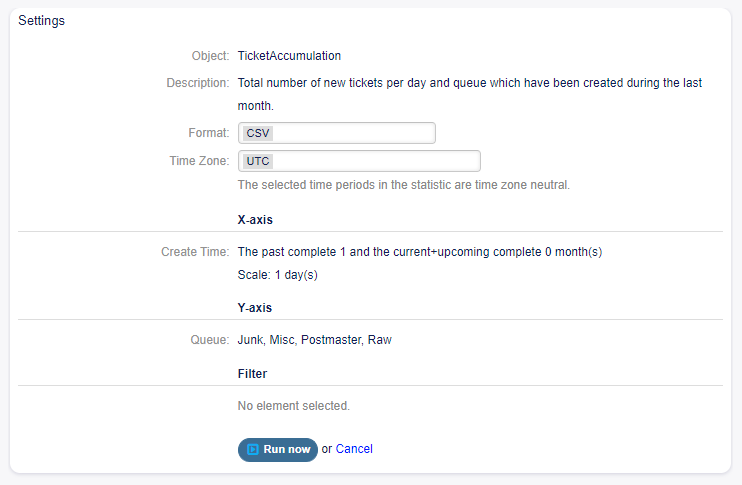
View Statistics Screen
To preview statistics:
Go the the edit screen of a statistics.
See the preview.
Change the settings to view different type of graphs.
Change the values of X-axis, Y-axis and Filter with the respective buttons.
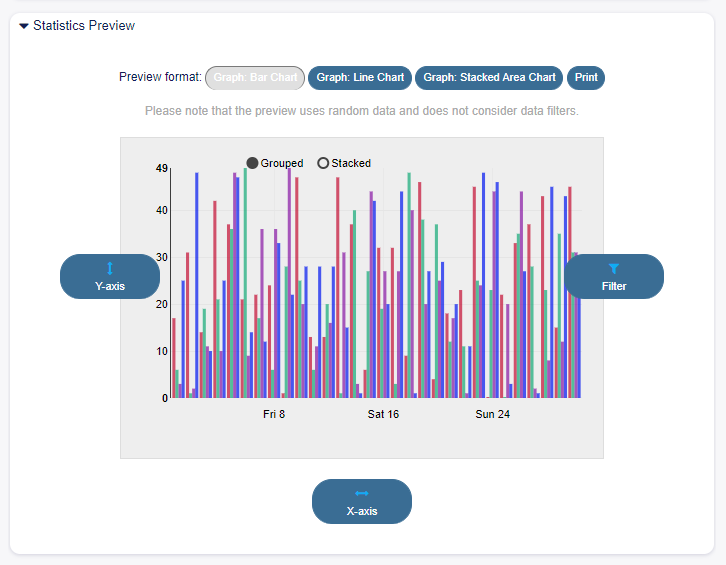
Statistics Preview Widget
Note
The preview uses random data and does not consider data filters.
General Statistics Specification
The following settings are available when adding or editing this resource. The fields marked with an asterisk are mandatory.
- Title *
The name of this resource. Any type of characters can be entered to this field including uppercase letters and spaces. The name will be displayed in the overview table.
- Description
Add additional information to this resource. It is recommended to always fill this field as a description of the resource with a full sentence for better clarity, because the comment will be also displayed in the overview table.
- Permissions *
You can select one or more groups to define access for different agents.
- Result formats *
You can select, in which format should be able to see the statistics.
- Time Zone *
The selected time periods in the statistics are time zone neutral.
- Create summation row
Generate an additional row containing sums for all data rows.
- Create summation column
Generate an additional column containing sums for all data columns.
- Cache results
Stores statistics result data in a cache to be used in subsequent views with the same configuration (requires at least one selected time field).
- Show as dashboard widget
Provide the statistics as a widget that agents can activate in their dashboard.
Note
Enabling the dashboard widget will activate caching for this statistics in the dashboard.
- Validity *
Set the validity of this resource. Each resource can be used in Rexpondo only, if this field is set to valid. Setting this field to invalid will disable the use of the resource.
Ticket Attributes for Statistics
The following ticket attributes can be included in statistics using the X-axis button, if Dynamic Lists statistics are selected.
- Number
An auto-increment integer number in the output to show the line numbers.
- Ticket#
The ticket number.
- Age
The relative age since ticket creation and now.
- Title
The title of the ticket.
- Created
The absolute date and time with timezone when the ticket was created.
- Last Changed
The absolute date and time with timezone when the ticket was changed.
- Close Time
The absolute date and time with timezone when the ticket was closed. This field is empty for open tickets.
- Queue
The queue in which the ticket is located.
- State
The state of the ticket.
- Priority
The priority of the ticket.
- Customer User
The login name of the customer user of the ticket.
- Customer ID
The customer of the customer user of the ticket.
- Service
The service of the ticket. If no service is assigned, this field is empty.
- SLA
The SLA of the ticket. If no SLA is assigned, this field is empty.
- Type
The type of the ticket.
- Agent/Owner
The owner agent of the ticket.
- Responsible
The responsible agent of the ticket.
- Accounted time
Accumulated time of the times stored in the articles.
- EscalationDestinationIn
The relative time from the current time to the time of escalation.
- EscalationDestinationDate
The absolute date and time with timezone when the ticket is escalated.
- EscalationTimeWorkingTime
The time in seconds within the defined working time or service time until an escalation.
- EscalationTime
The total time in seconds until escalation of nearest escalation time type: response, update or solution time.
- FirstResponse
The timestamp of first response.
- FirstResponseInMin
The time in minutes from ticket creation to first response (based on working time).
- FirstResponseDiffInMin
The difference in minutes between the specified response time and the actual response time.
- FirstResponseTimeWorkingTime
The time in seconds within the defined working time or service time until an escalation of a first response.
- FirstResponseTimeEscalation
Defines, whether the ticket has escalated or not.
- FirstResponseTimeNotification
Defines, whether the defined escalation notification time is reached or not.
- FirstResponseTimeDestinationTime
The escalation time as Unix timestamp.
- FirstResponseTimeDestinationDate
The absolute date of a first response time escalation.
- FirstResponseTime
The total time in seconds until the first response time escalation.
- UpdateTimeNotification
Defines, whether the defined escalation notification time is reached or not.
- UpdateTimeDestinationTime
The update time escalation as Unix timestamp.
- UpdateTimeDestinationDate
The absolute date of an update time escalation.
- UpdateTimeWorkingTime
The time in seconds within the defined working time or service time until an update time escalation.
- UpdateTime
The total time in seconds until an update time escalation.
- SolutionTime
The total time in seconds until a solution time escalation.
- SolutionInMin
The total time in minutes until a solution time escalation.
- SolutionDiffInMin
The difference in minutes between the specified solution time and the actual solution time.
- SolutionTimeWorkingTime
The time in seconds within the defined working time or service time until a solution time escalation.
- SolutionTimeEscalation
Defines, whether the ticket has escalated or not.
- SolutionTimeNotification
Defines, whether the defined escalation notification time is reached or not.
- SolutionTimeDestinationTime
The solution time escalation as Unix timestamp.
- SolutionTimeDestinationDate
The absolute date of a solution time escalation.
- First Lock
The absolute date and time with timezone when the ticket was locked first. This field is empty for tickets, that are not locked yet.
- Lock
The lock state of the ticket.
- StateType
State type of the ticket.
- UntilTime
Total seconds till pending.
- UnlockTimeout
Time until the ticket is automatically unlocked.
- EscalationResponseTime
Unix timestamp of response time escalation.
- EscalationSolutionTime
Unix timestamp of solution time escalation.
- EscalationUpdateTime
Unix timestamp of update time escalation.
- RealTillTimeNotUsed
Unix timestamp of pending time.
- Number of Articles
The number of articles in the ticket.
- Process
The name of the process in which a process ticket is involved.
- Activity
The name of the activity in the process.
- Activity Status
The status of the activity in the process.
- DynamicField_NameX
The name of the dynamic fields added to the system. The list of dynamic fields is different in each system.