OmniSearch
OmniSearch is the unified search and command bar in the agent interface. It lets you find records and open frequently used screens without leaving the current page.
Open OmniSearch by clicking the search bar or by using one of these keyboard shortcuts:
Ctrl+Kon Windows and Linux.Cmd+Kon macOS./when the cursor is not inside another input field.
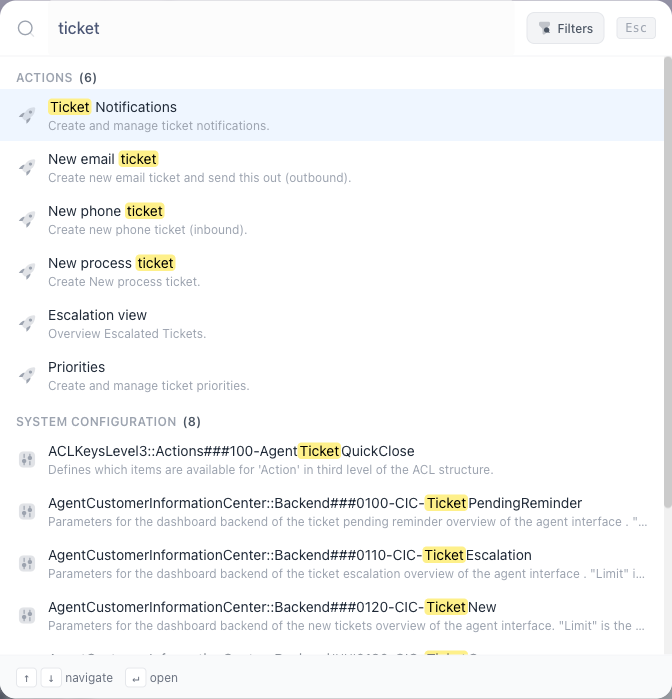
OmniSearch displays matching actions and records in separate groups.
What OmniSearch Finds
The results are grouped by type. Depending on your permissions, OmniSearch can find:
actions, such as creating a phone ticket or opening the agent overview;
tickets, including matching article text;
customers;
customer users;
system configuration settings, for administrators only.
Only records and actions that you are allowed to access are displayed. Search results may therefore differ between agents.
Start typing at least two characters to search. Select a result with the mouse,
or use the up and down arrow keys and press Enter.
Filtering Tickets
Add filters using the filter panel or type them directly as
filter:value. Put a value in double quotes when it contains spaces, for
example queue:"Customer Support".
The following English and Italian filter names are available:
Purpose |
English |
Italian |
|---|---|---|
Queue |
|
|
State |
|
|
Priority |
|
|
Type |
|
|
Owner |
|
|
Responsible |
|
|
Customer |
|
|
Service |
|
|
SLA |
|
|
Ticket number |
|
|
Title |
|
|
Created on or after |
|
|
Created on or before |
|
|
Dates must use the YYYY-MM-DD format. Date boundaries are inclusive.
Examples:
password reset
queue:Support status:new
owner:jsmith priority:"3 normal"
customer:ACME after:2026-01-01 before:2026-01-31
coda:"Customer Support" stato:aperto errore login
Press Tab or Enter after typing a filter to turn it into a removable
chip. When the text field is empty, Backspace removes the last chip.
Using the Filter Panel
Open the filter panel to select queue, state, priority and ticket type from the values available in the system. The queue list includes only queues for which you have read permission.
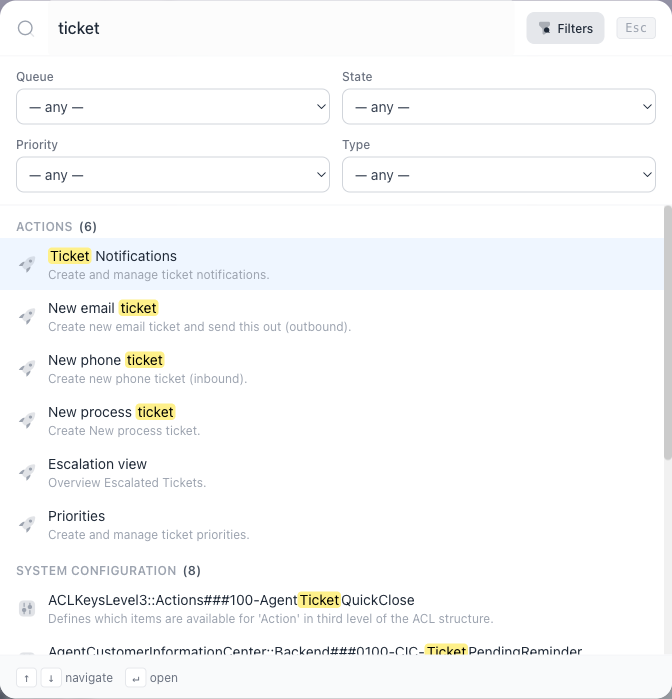
The filter panel provides selectable ticket filters.
Filters apply to tickets. A query containing only ticket filters does not search customers, customer users, actions or system configuration settings.
Exporting Results
Ticket result groups provide an Export menu. Use it to download all matching tickets as CSV or Excel. The export uses the same query and permissions as the results shown in OmniSearch.
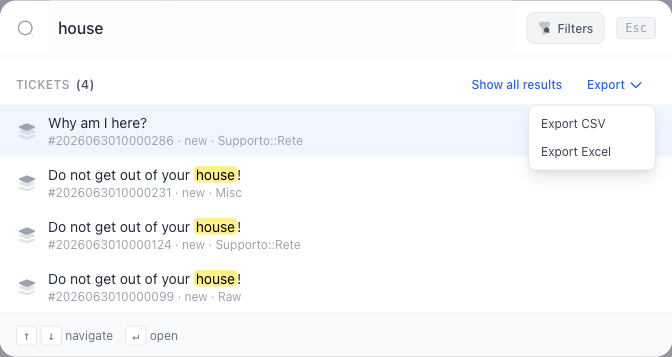
Open the Export menu in the ticket result group to choose CSV or Excel.
Keyboard Reference
Key |
Action |
|---|---|
|
Open OmniSearch |
|
Open OmniSearch outside input fields |
Up / Down |
Move through results |
|
Open the selected result or confirm a filter |
|
Confirm a typed filter |
|
Remove the last filter when the input is empty |
|
Close the filter panel, then close OmniSearch |
Search Availability
Ticket, customer and customer-user searches require the search engine configured by the administrator. If it is unavailable, OmniSearch displays a warning. Actions remain searchable, and authorized administrators can still search system configuration settings.
The regular Search screen remains available for full-text searches with advanced Elasticsearch query syntax.