Translations
Translations Overview
The Translation Page empowers admins to customize the ticketing system by adding translations to nearly all labels.
This feature ensures a seamless, multilingual user experience by enabling easy localization of the platform.
Use this screen to change the label translations in the system. The Translations screen is available in the Translations module of the Administration group.
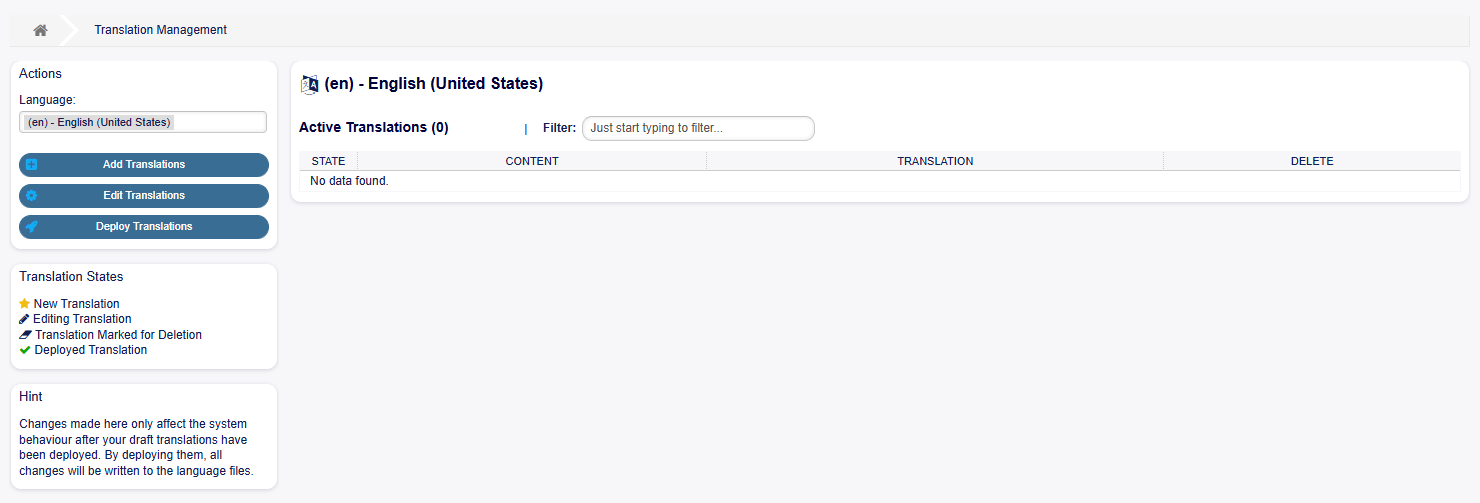
Translations Overview Screen
This feature provides admins with tools to manage translations for system labels and text. Key features include:
- Language Selection:
A dropdown menu allows choosing the language for which translations will be managed. Here, the selected language is “(en) - English (United States).”
- Action Buttons:
Add Translations: Facilitates adding new translations.
Edit Translations: Allows editing existing translations.
Deploy Translations: Publishes translations, making them live in the system.
- Active Translations Table:
Displays a list of translations, including their state, content, translation text, and a delete option. Currently, no active translations are available.
- Translation States:
A legend explains the meaning of translation statuses (e.g., new, editing, marked for deletion, deployed).
This interface simplifies managing localized content for the ticketing system, ensuring flexibility and clarity for admins.
Add Translation
To add a new translation:
Choose the language for which the label needs translation.
Click on the Add Translation button in the left sidebar.
Choose the object to translate (see the description of each object: Objects Available for Translation).
Translate the label.
Click on the Save and Finish button.

Add New Translation Screen
Warning
After adding a new translation, it must be deployed to take effect. See Deploy Translations.
Edit Translation
To edit a translation:
Identify the translation you need to update and click on it.
Edit the translation field.
Click on the Save and Finish button.
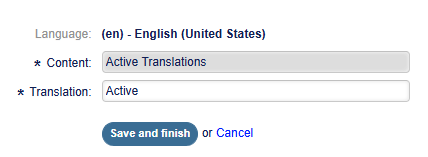
Edit Translation Screen
Warning
After editing a translation, it must be deployed to take effect. See Deploy Translations.
Deploy Translations
In order to apply additions, edits, or deletions of translations, they need to be deployed:
Navigate to the Translation Overview page.
Click on the Deploy Translations button.
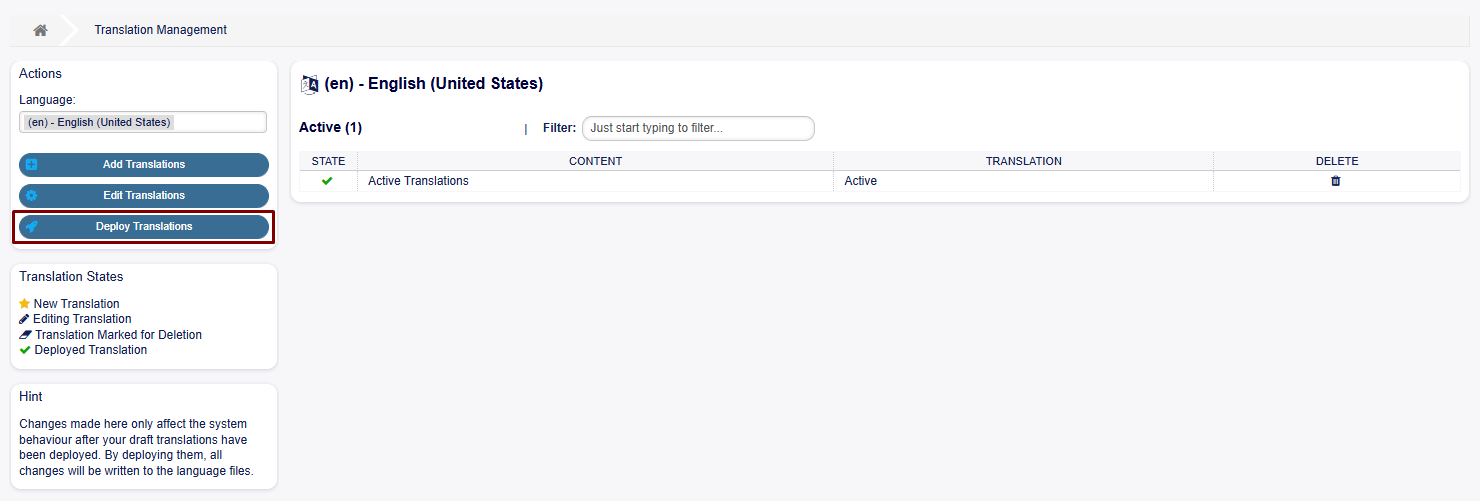
Deploy Translation Screen
Once clicked, a pop-up will display the result of the deployment.
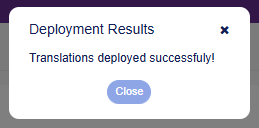
Deployment Result Translation Screen
Objects Available for Translation
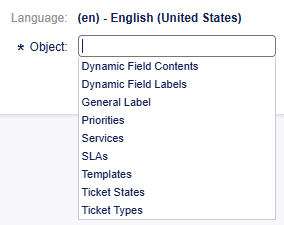
Translation Objects Screen
The objects available for translation are:
- Dynamic Field Contents:
Refers to the predefined values that populate dynamic fields.
- Dynamic Field Labels:
The labels or names associated with dynamic fields.
- General Label:
Includes generic labels used across the system interface, such as buttons, headings, or messages.
- Priorities:
Refers to the labels for ticket priority levels (e.g., High, Medium, Low) that help users understand the urgency of a ticket.
- Services:
Names of services configured in the system.
- SLAs (Service Level Agreements):
Labels for SLA policies.
- Templates:
The names of templates used for answering a ticket.
- Ticket States:
The status labels for tickets (e.g., New, Open, Closed Successful) that indicate a ticket’s current progress in the workflow.
- Ticket Types:
Types of tickets (e.g., Unclassified, Incident, Feature Request) to help classify and manage tickets effectively in different languages.