Import/Export
This package provides a tool to import and export configuration items in the CSV format.
Note
This package requires the ITSM Configuration Management feature or any other package that provides back end for objects to be imported and exported.
Administrator Interface
This chapter describes the new features that are available in the administrator interface after installation of the package.
Administration
After installation of the package a new module will be available in the administrator interface.
Import/Export
Use this screen to create import and export templates. The import/export template management screen is available in the Import/Export module of the Administration group.
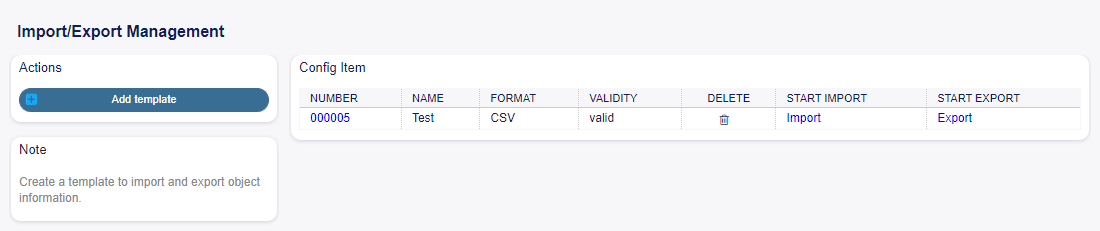
Import Export Overview Screen
Manage Import/Export Templates
- To create a new template:
Click on the Add Template button in the left sidebar.
Fill in the required fields in all steps.
Click on the Finish button.
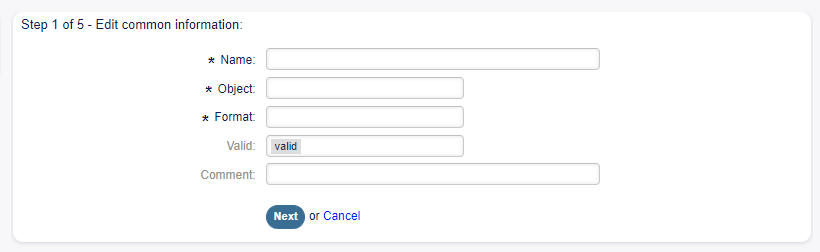
Add Import Export Template Screen
- To edit a template:
Click on a template in the list of templates.
Modify the fields in all steps.
Click on the Finish button.
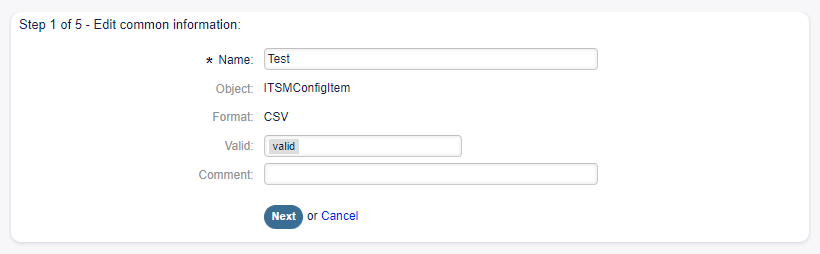
Edit Import Export Template Screen
- To delete a template:
Click on the trash icon in the list of templates.
Click on the Confirm button.
- To import data based on a template:
Click on the Import link in the list of templates.
Click on the Browse… button and select a CSV file.
Click on the Start Import button.

Delete Import Export Template Screen
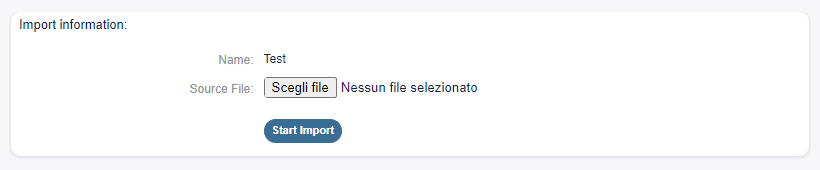
Start Import Screen
- To export data based on a template:
Click on the Export link in the list of templates.
Choose a location in your computer to save the
Export.csvfile.
Import/Export Template Settings
The following settings are available when adding this resource. The fields marked with an asterisk are mandatory.
Note
Import/Export package is meant to be independent. This means, that the following settings can be different if no configuration items will be imported or exported.
Edit Common Information
- Name * The name of this resource. Any type of characters can be entered to this field including uppercase
letters and spaces. The name will be displayed in the overview table.
Object * Select the object type you want to import to or export from. Format * Select the import and export format. Validity * Set the validity of this resource. Each resource can be used in Rexpondo only, if this field is set to
valid. Setting this field to invalid or invalid-temporarily will disable the use of the resource.
Comment Add additional information to this resource. It is recommended to always fill this field as a description of the resource with a full sentence for better clarity.
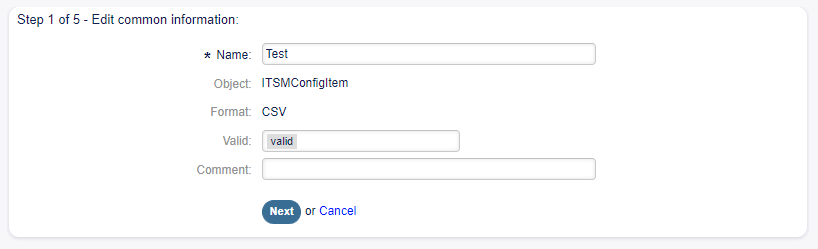
Import Export Edit Common Information Screen
Edit Object Information
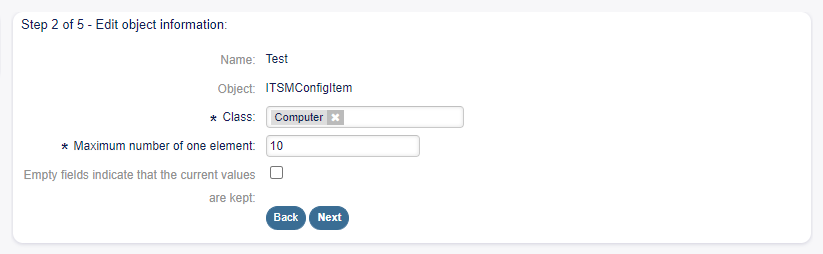
Import Export Edit Object Information Screen
Name This is a read only field from the previous step. Use the Back button to edit it. Object This is a read only field from the previous step. Use the Back button to edit it. Class * Select the class that is needed to be affected by the import and export. Maximum number of one element * Specify, how many items can have an item. Empty fields indicate that the current values are kept Select this checkbox if the empty field should
keep the data in Rexpondo. Otherwise the data will be overwritten with blank value.
Edit Format Information
Name This is a read only field from the previous step. Use the Back button to edit it. Format This is a read only field from the previous step. Use the Back button to edit it. Column Separator * Select a column separator for CSV file. Charset Select a character encoding for the CSV file.
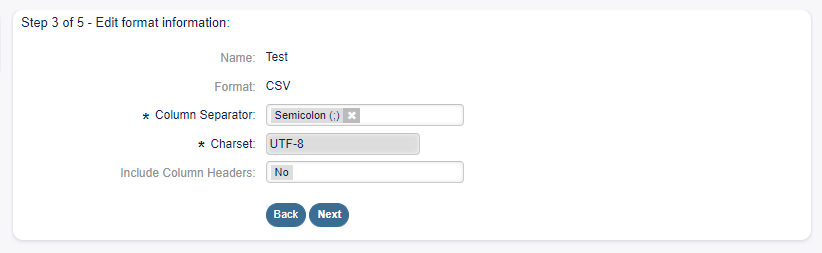
Import Export Edit Format Information Screen
Include Column Headers Specify if column headers should be included or not.
Edit Mapping Information
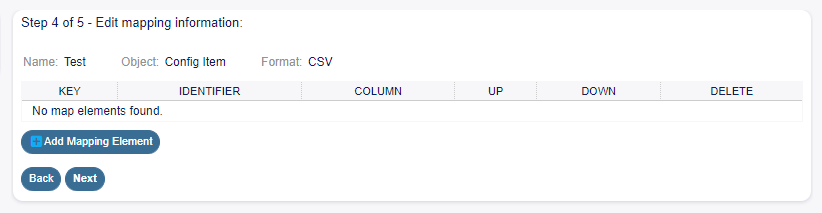
Import Export Edit Mapping Information Screen
Click on the Add Mapping Element button to add element from the class. You can also specify if this element is an identifier. The order of the elements is sortable.
Edit Search Information
Template Name This is a read only field from the previous step. Use the Back button to edit it. Restrict export per search You can add search term for each attribute of the selected class to restrict the
import and export functions. The possible fields are listed below this field.
- ..note ::
The other fields come from the back end driver, and can be different depending on the used object
to be imported or exported.
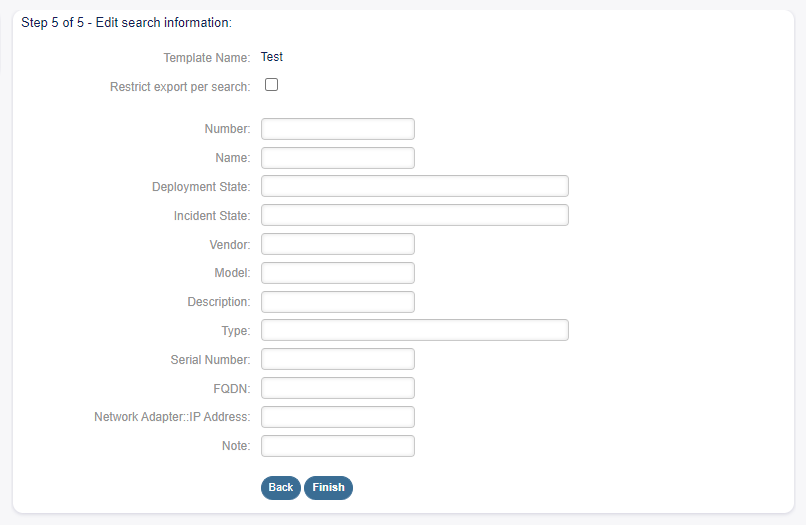
Import Export Edit Search Information Screen
Agent Interface
This package has no agent interface.
External Interface
This package has no external interface.