ITSM Incident Problem Management
The service desk (which, according to ITIL, is not a process but a function) is usually the ticket system’s main field of application. All user messages and notifications from system monitoring and internal IT organization converge here. The ITIL service management process, closely interwoven with the service desk, describes which work steps, information, escalations and/or interfaces are relevant in connection with the processing of incidents or service requests.
The incident and problem management processes within Rexpondo::ITSM are based on ITIL recommendations and ITIL terminology. At the same time, user comfort was a main consideration, and terms known from Rexpondo have been retained as much as possible.
Note
This package requires the General Catalog and the ITSM Core features.
Administrator Interface
This chapter describes the new features that are available in the administrator interface after installation of the package.
Ticket Settings
After installation of the package a new state is added to the ticket states and some new types are added to ticket types.
States
After installation of the package a new state is added to the system. The state management screen is available in the States module of the Ticket Settings group.
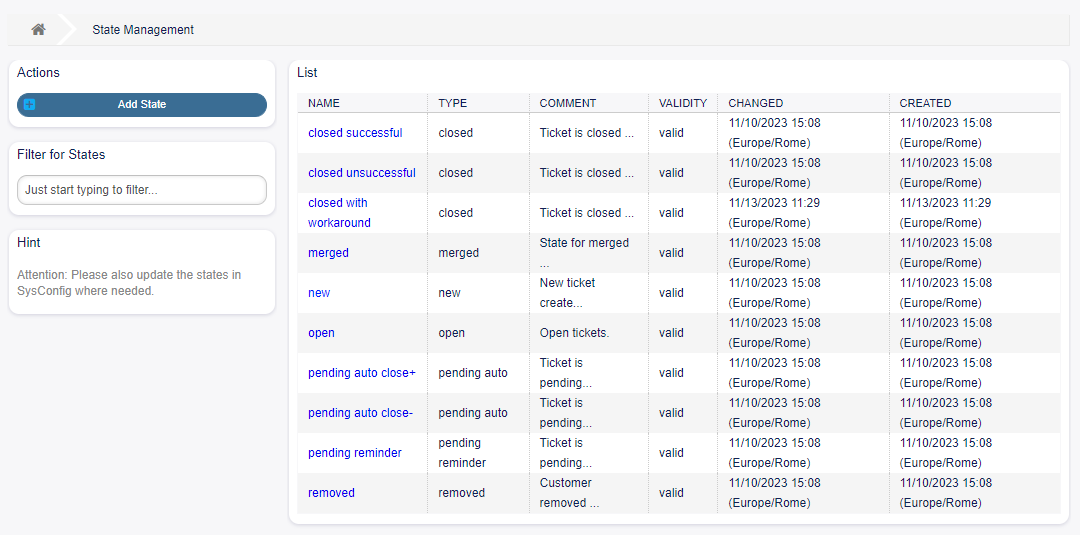
States Management Screen
New State
closed with workaround This end state is for tickets, that are closed successfully, but with a workaround.
Types
After installation of the package some new types are added to the system. The type management screen is available in the Types module of the Ticket Settings group.
New Types
Incident For tickets that are created for normal incidents. Incident::Major For tickets that are created for major incidents. Problem For tickets that are created for problems. ServiceRequest For tickets that are created for service requests.
Processes & Automation
After installation of the package some new dynamic fields are added to the system and activated on screens.
Dynamic Fields
After installation of the package some new dynamic fields are added to the system. The dynamic field management screen is available in the Dynamic Fields module of the Processes & Automation group.
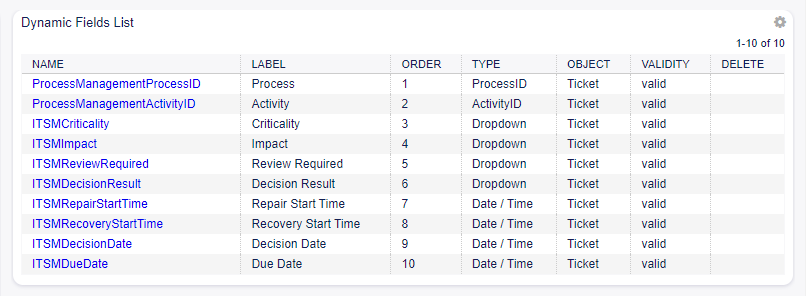
Dynamic Field Management Screen
New Dynamic Fields
- ITSMReviewRequired This is a drop-down dynamic field that contains Yes and No to indicate if a review
is required.
ITSMDecisionResult This is a drop-down dynamic field that contains some possible results for decisions. ITSMRepairStartTime This is a date/time dynamic field for holding the repair start time. ITSMRecoveryStartTime This is a date/time dynamic field for holding the recovery start time. ITSMDecisionDate This is a date/time dynamic field for holding the decision time. ITSMDueDate This is a date/time dynamic field for holding the due date.
The new dynamic fields are activated in many screens by default.
- To see the complete list of screens:
Go to the system configuration.
Filter the settings for
ITSMIncidentProblemManagementgroup.Navigate to
Frontend → Agent → View or Frontend → External → Viewto see the screens.
Agent Interface
This chapter describes the new features that are available in the agent interface after installation of the package.
Tickets
After installation of the package some new fields will be available in the ticket screens.
Status View
After installation of the package some new fields will be available in the Status View screen.

Ticket Status View Screen
Some new dynamic fields are also displayed in this view.
New Email Ticket
After installation of the package some new fields will be available in the New Email Ticket screen.
New Fields
Impact Select the impact level from 1 very low to 5 very high. Due Date Select a date as due date for the new ticket
New Phone Ticket
After installation of the package some new fields will be available in the New Phone Ticket screen.
New Fields
Impact Select the impact level from 1 very low to 5 very high. Due Date Select a date as due date for the new ticket
Search
After installation of the package some new attributes are added to the Ticket Search screen.
- To see the new attributes:
Open the Search menu item from the Tickets menu.
Click on the Add another attribute filed.
Scroll down the list and check the available attributes.
- The new attributes are:
Impact
Review Required
Decision Result
Repair Start Time (before/after)
Repair Start Time (between)
Recovery Start Time (before/after)
Recovery Start Time (between)
Decision Date (before/after)
Decision Date (between)
Due Date (before/after)
Due Date (between)
Ticket Zoom
After installation of the package many new dynamic fields will be available in the Ticket Zoom screen and in its child windows. Additionally, two new menu items are added to the ticket menu
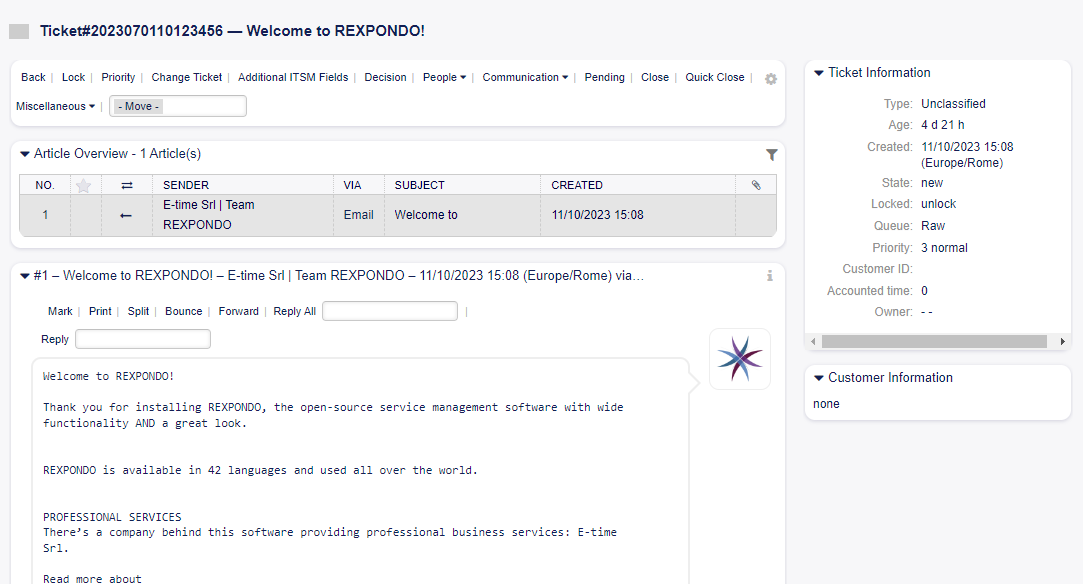
Ticket Zoom Screen
Priority
After installation of the package a new field is added to this window.
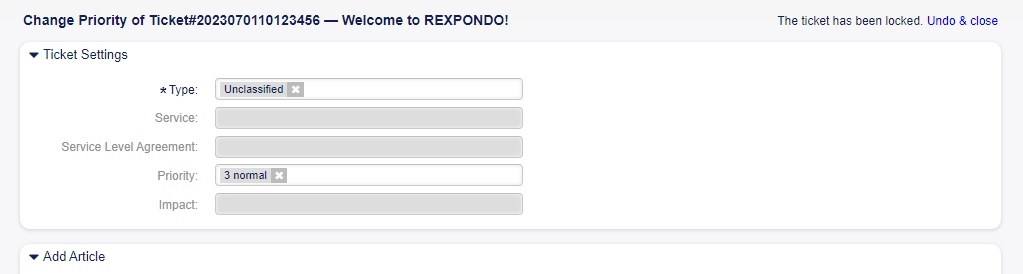
Ticket Priority Screen
Impact Select the impact level from 1 very low to 5 very high.
It is possible to add an article to the ticket if the action needs to be explained more detailed.
Additional ITSM Fields
After installation of the package a new menu item Additional ITSM Fields is displayed in the ticket menu. Clicking on this menu item will open a new window.
In this window the additional ITSM fields can be set regarding to repair and recovery start time, as well as the due date.
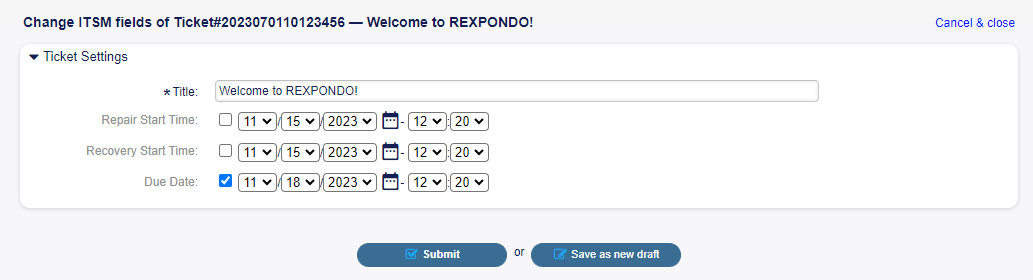
Ticket Additional ITSM Fields Screen
Title * This is the title of the ticket. Repair Start Time Select the date and time when the problem started to be repaired. Recovery Start Time Select the date and time when the recovery of the problem started. Due Date Select the date and time as due date for the ticket.
Decision
After installation of the package a new menu item Decision is displayed in the ticket menu. Clicking on this menu item will open a new window.
In this window the decision result and the decision date can be set.
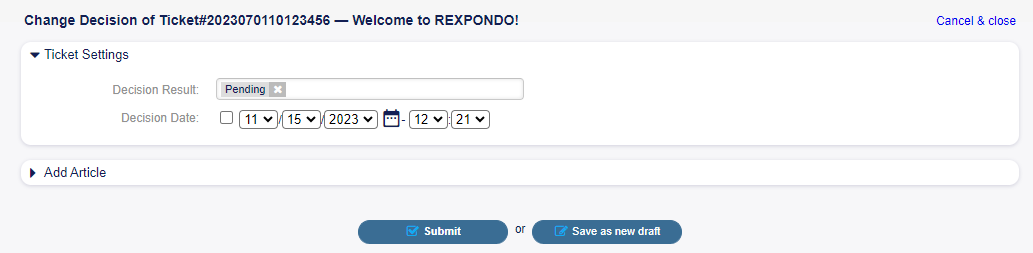
Ticket Decision Screen
- Decision Result Select a possible result for the decision. The available decision results can be set as
Dynamic Fields.
Decision Date Select the date and time when the decision was made.
It is possible to add an article to the ticket if the action needs to be explained more detailed.
Close
After installation of the package a new field is added to this window.

Ticket Close Screen
Review Required Select if a review is required after the ticket close.
It is possible to add an article to the ticket if the action needs to be explained more detailed.
Free Fields
After installation of the package a new field is added to this window.
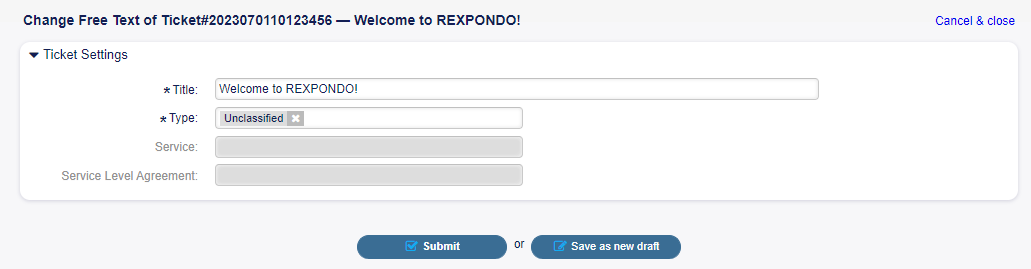
Ticket Free Fields Screen
Type Select a type for the ticket.
See also: To remove this field, disable this system configuration setting:
Ticket::Frontend::AgentTicketFreeText###TicketType
Ticket Compose
After installation of the package a new field is added to this window.

Ticket Compose Screen
Review Required Select if a review is required after the ticket compose.
External Interface
This package has no external interface.