ITSM Core
This package adds new objects and basic functionalities needed for common features and processes of ITIL implementation.
Note
This package requires the General Catalog feature
Administrator Interface
This chapter describes the new features that are available in the administrator interface after installation of the package.
Ticket Settings
After installation of the package a new module will be available in the administrator interface. Furthermore, Service Level Agreements and Services screens are extended with some new fields.
Criticality Impact Priority
Use this screen to manage the criticality ff impact ff priority matrix. The management screen is available in the Criticality fi Impact fi Priority module of the Ticket Settings group.
Service Level Agreements
The service level agreement management screen is available in the Service Level Agreements module of the Ticket Settings group.
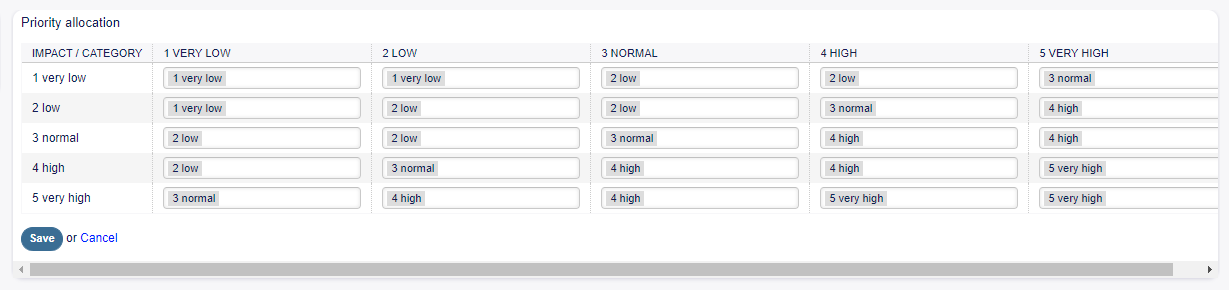
Criticality - Impact - Priority Screen

Add Service Level Agreement Service Screen
Service Level Agreement Settings
Only those settings are described here, that are added by the package. The explanation of other settings can be found in the administrator manual. The fields marked with an asterisk are mandatory.
Type Select a type for the service level agreement. The possible values come from General Catalog added by the package. Minimum Time Between Incidents (minutes) You can define here the minimum time between incidents.
Services
The service management screen is available in the Services module of the Ticket Settings group.
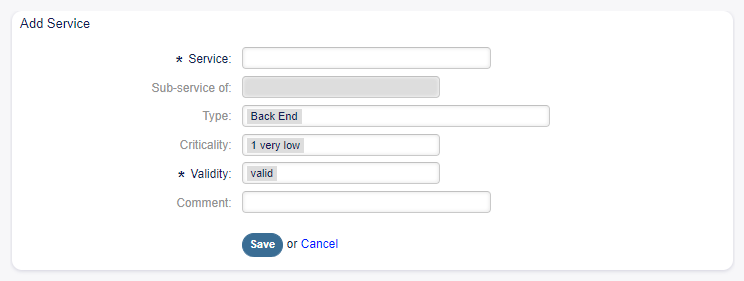
Add Service Screen
Service Settings
Only those settings are described here, that are added by the package. The explanation of other settings can be found in the administrator manual. The fields marked with an asterisk are mandatory.
Type Select a type for the service. The possible values come from General Catalog added by the package. Criticality Select a criticality for the service. The possible values come from General Catalog added by the package.
Users, Groups & Roles
After installation of the package a new group is added to the system.
Groups
After installation of the package a new group is added to the system. The group management screen is available in the Groups module of the Users, Groups & Roles group.
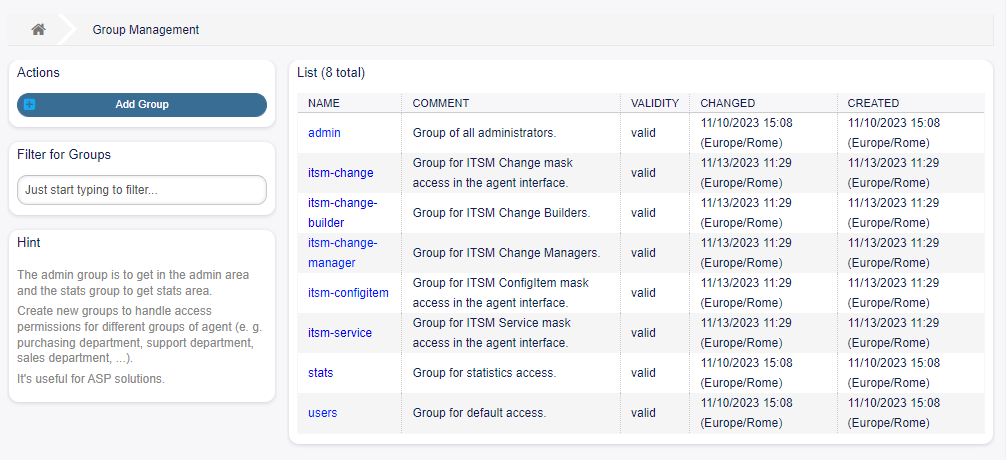
Group Management Screen
New Group
After installation of the package the following group is added to the system: itsm-service Group for accessing the ITSM Service screen of the agent interface.
Note
The primary administrator user (root@localhost) is added to the group with permission rw by default.
See also: To set the correct permissions for other users, check the following relations:
Agents Groups
Customers Groups
Customer Users Groups
Roles Groups
Processes & Automation
After installation of the package some new dynamic fields are added to the system and activated on screens.
Dynamic Fields
After installation of the package some new dynamic fields are added to the system. The dynamic field management screen is available in the Dynamic Fields module of the Processes & Automation group.
New Dynamic Fields
ITSMCriticality This is a drop-down dynamic field that contains criticality levels from 1 very low to 5 very high.
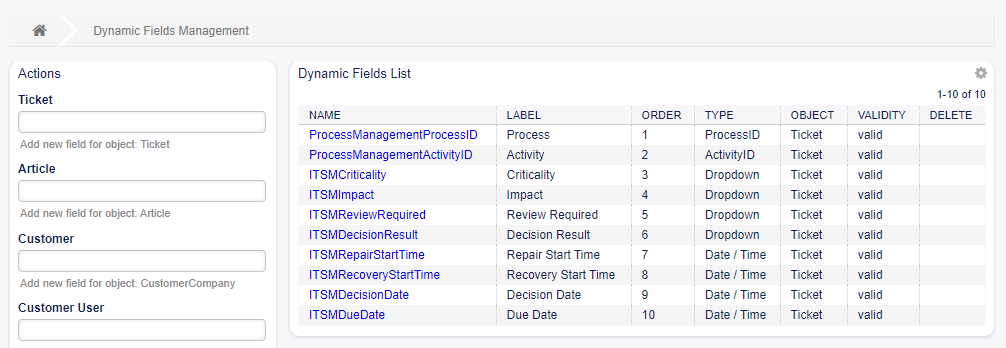
Dynamic Field Management Screen
ITSMImpact This is a drop-down dynamic field that contains impact levels from 1 very low to 5 very high.
Administration
After installation of the package some new classes will be available in the General Catalog.
General Catalog
ITSM Core adds some new classes to the General Catalog. The general catalog management screen is available in the General Catalog module of the Administration group.
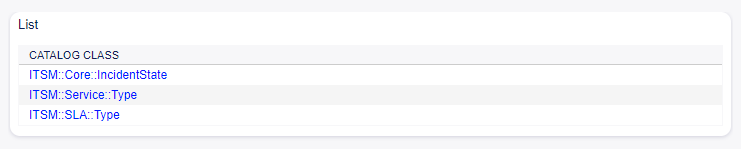
General Catalog Class List Screen
New Classes
ITSM::Core::IncidentState This class contains incident states. ITSM::Service::Type This class contains service types. ITSM::SLA::Type This class contains service level agreement types.
Agent Interface
This chapter describes the new features that are available in the agent interface after installation of the package.
Tickets
After installation of the package some new fields will be available in the ticket screens.
New Email Ticket
After installation of the package some new fields will be available in the New Email Ticket screen.
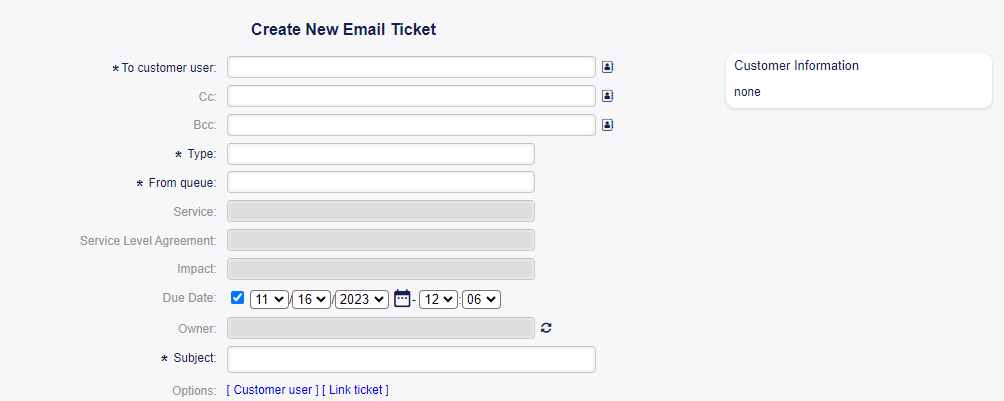
New Mail Ticket Screen
New Fields
Service Select a service for the new ticket. Service Level Agreement Select a service level agreement for the new ticket. See also: To make these fields mandatory, enable these system configuration settings:
Ticket::Frontend::AgentTicketEmail###ServiceMandatory
Ticket::Frontend::AgentTicketEmail###SLAMandatory
New Phone Ticket
After installation of the package some new fields will be available in the New Phone Ticket screen.
New Fields
Service Select a service for the new ticket. Service Level Agreement Select a service level agreement for the new ticket. See also: To make these fields mandatory, enable these system configuration settings:
Ticket::Frontend::AgentTicketPhone###ServiceMandatory
Ticket::Frontend::AgentTicketPhone###SLAMandatory
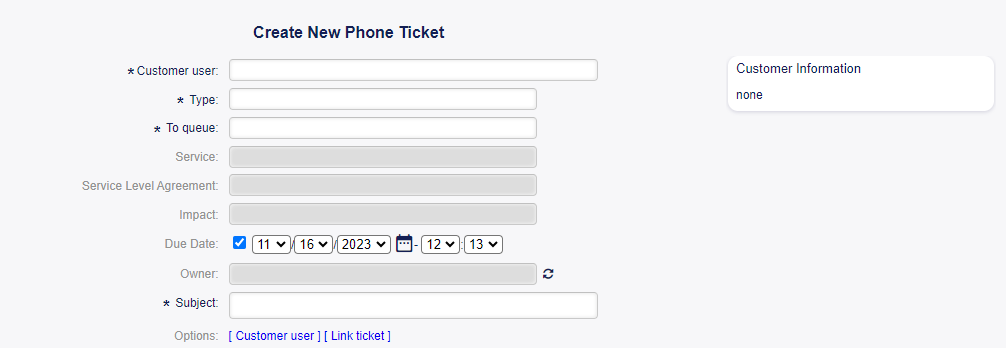
New Phone Ticket Screen
Ticket Zoom
After installation of the package some new fields will be available in the Free Fields window of Ticket Zoom screen.
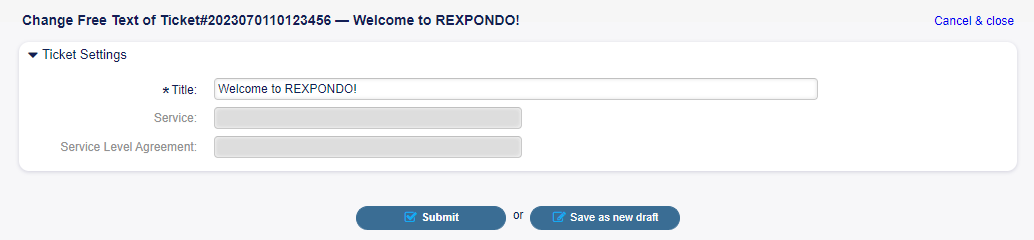
Free Fields Window Screen
New Fields
Service Select a service for the new ticket. Service Level Agreement Select a service level agreement for the new ticket. See also: To make these fields mandatory, enable these system configuration settings:
Ticket::Frontend::AgentTicketFreeText###ServiceMandatory
Ticket::Frontend::AgentTicketFreeText###SLAMandatory
Services
After installation of the package a new menu will be available in the agent interface.
Note
In order to grant users access to the Services menu, you need to add them as member to the group itsm-service.
The menu items that were added by this package will be visible after you log-in to the system again.
Service
Use this screen to get a list of services directly in the agent interface. The Service menu item is available in the Services menu of the main navigation bar.
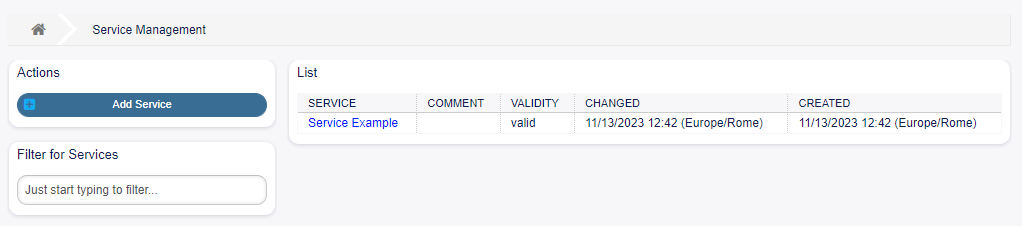
Service Management Screen
A view on services and configuration items, including information on each object’s current state, allows you to analyze an incident and calculate the incident’s impact on affected services and customers, and service level agreements and linked configuration items are also displayed. For each configuration item, the current incident state is shown. In addition, the incident state will be propagated for dependent service level agreements and configuration items. If a service is selected, the service details will be shown, now with the additional current incident State, which is calculated from the incident states of dependent services and configuration items.
- Service states can have one of the following three values:
Operational (green)
Warning (yellow)
Incident (red)
The propagation of the incident state will be carried out if configuration items are linked with the link type depend on. Here the following rules apply:
If a configuration item is dependent on another configuration item, which is in the state Incident, the
dependent configuration item gets the state Warning. * If a service is dependent on configuration items, and one of these configuration items has a state Incident, the service will also get the state Incident. * If a service is dependent on configuration items, and one of these configuration items has the state Warning, the service will also get the state Warning. * f a service has sub-services, and one of these services has the state Incident, the parent service will get the state Warning. * If a service has sub-services, and one of these services has the state Warning, the parent service will get the state Warning.
The states of the respective services, sub-services, and configuration items will be shown in the view.
See also:
Read the chapter about configuration item Overview to setup the dynamic calculation of service states.
- To see the details of a service:
Click on the row of a service.
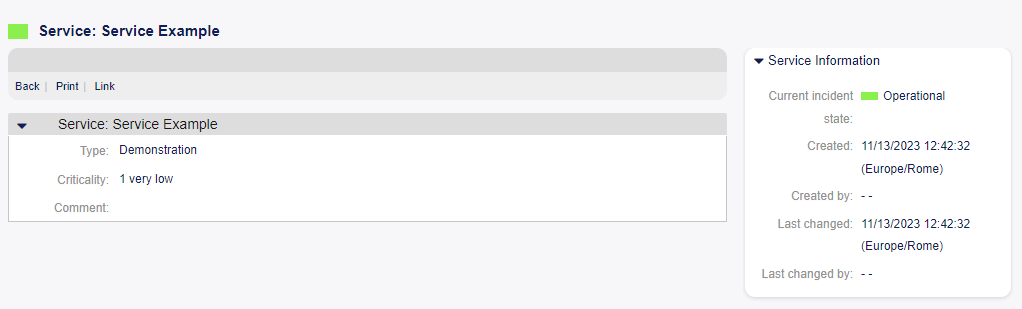
Service Zoom Screen
The Service Zoom screen has an own menu.
Back This menu item goes back to the previous screen.
- Print This menu item opens a PDF file to show the printer friendly version of the screen. You can save or
print this PDF file.
- Link This menu item opens the standard link screen of Rexpondo. Services can be linked to any other objects
like FAQ articles, services, tickets or configuration items. Existing links can also be managed here.
At the bottom of the screen the associated service level agreements are displayed. If you click on a service level agreement, the Service Level Agreements zoom screen will open (next chapter).
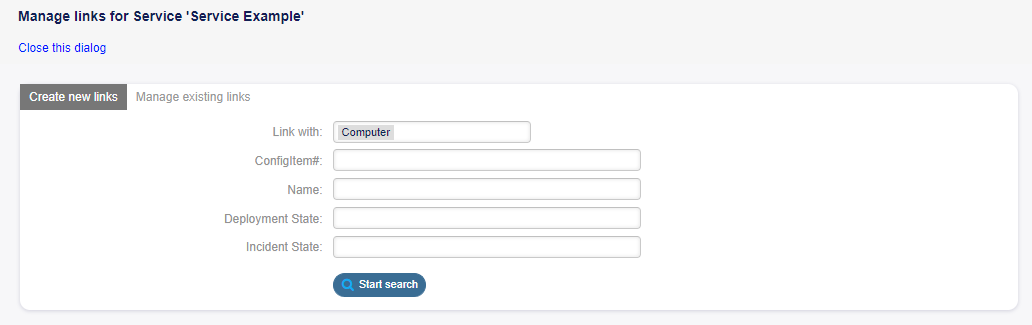
Link Service Screen
Service Level Agreements
Use this screen to get a list of service level agreements directly in the agent interface. The SLA menu item is available in the Services menu of the main navigation bar.

SLA Management Screen
- To see the details of a service level agreement:
Click on the row of a service level agreement.
The Service Level Agreement Zoom screen has an own menu.
Back This menu item goes back to the previous screen.
- Print This menu item opens a PDF file to show the printer friendly version of the screen. You can save or
print this PDF file.
At the bottom of the screen the associated services are displayed. If you click on a service, the Services zoom screen will open.
External Interface
This package has no external interface.
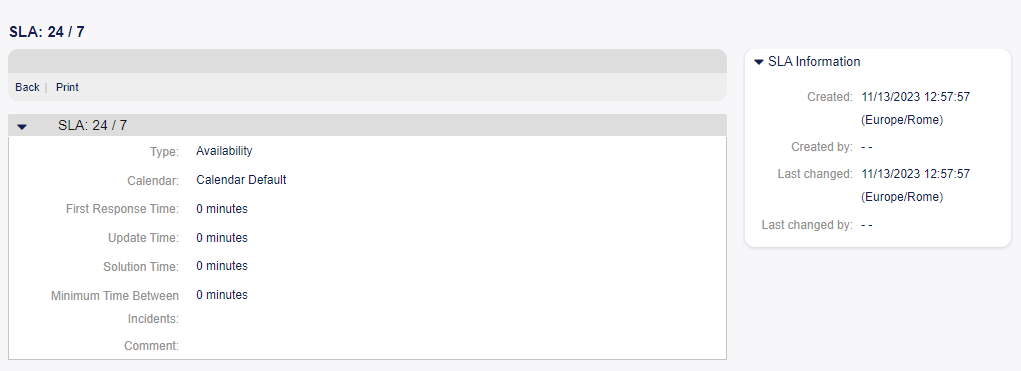
SLA Zoom Screen