ITSM Configuration Management
The configuration management database (CMDB) is not a database in the technical sense, but a conceptual IT model, which is indispensable for efficient IT service management. All IT components and inventories are managed in the CMDB. Configuration management exceeds asset management, often incorrectly used as a synonym, as it does not only document assets from a financial point of view, but captures information regarding the relationship between components, specifications, or their location. Thus IT support can quickly access information on the interdependence of IT services and the IT components (aka. config items or CIs) necessary for them.
Note
This package requires the General Catalog and the ITSM Core features.
Administrator Interface
This chapter describes the new features that are available in the administrator interface after installation of the package.
Users, Groups & Roles
After installation of the package a new group is added to the system.
Groups
After installation of the package a new group is added to the system. The group management screen is available in the Groups module of the Users, Groups & Roles group.
New Group
After installation of the package the following group is added to the system:
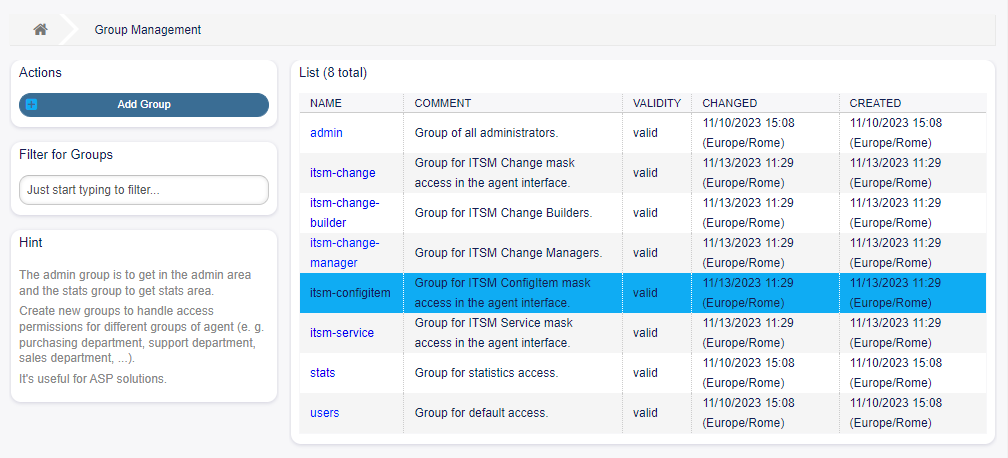
Group Management Screen
itsm-configitem Group for accessing the ITSM Configuration Item* screen of the agent interface.
Note
The primary administrator user (root@localhost) is added to the group with permission rw by default
See also: To set the correct permissions for other users, check the following relations:
Agents Groups
Customers Groups
Customer Users Groups
Roles Groups
Processes & Automation
After installation of the package two new scripts are added to the script task activity element of process management and some new operations are added to the generic interface.
Web Services
This package adds some new operations for creating, changing, retrieving, deleting and searching configuration items via generic interface. The following operations are available:
ConfigItemCreate()
ConfigItemDelete()
ConfigItemGet()
ConfigItemSearch()
ConfigItemUpdate()
See also: For more information ask the Rexpondo Team for the WSDL file.
New Operations
- These new operations are available in the Web Services module of the Processes & Automation group:
Input * Initiates the definition of the input field. An input field can contain the following attributes:
Type * Defines the type of the element. Must be placed indented as a logical block. Possible values are: • Text: A single text field. • TextArea: A text field with multiple rows. • GeneralCatalog: A drop-down list for select a general catalog class. The general catalog class must be defined before use it as input type. The items of the general catalog class will be the options of the drop-down list. • CustomerCompany: A drop-down list for select a customer from the database back end. • Customer: A drop-down list for select a customer user from the database back end. The field can be used with wildcards (*). • Date: A field for select a date. • DateTime: A field for select date and time. • Integer: A drop-down list with integer numbers. Required Defines whether the field is mandatory or not. Possible values are 0 or 1. Size Defines the size of the text field. The value must be a positive integer. MaxLength Defines the maximum amount of characters that can be entered in the text field. The value must be a positive integer. RegEx A regular expression to restrict the possible values of the text field. RegExErrorMessage The displayed error message if the input does not match to definition given in the regular expression. Class The name of the class to be used for the drop-down list. Required for type GeneralCatalog. Translation Defines whether the items of a general catalog have to be translated. Possible values are: 0 or 1. YearPeriodPast Defines how many years in the past are available for selection from the present year in a date or date/time field. The value must be a positive integer. YearPeriodFuture Defines how many years in the future are available for selection from the present year in a date or date/time field. The value must be a positive integer. ValueMin Defines the minimum value for an integer field. ValueMax Defines the maximum value for an integer field. ValueDefault Defines the default value for an integer field. CountMin Defines at least how many of the current input types are available. The value must be a positive integer. CountMax Defines at most how many of the current input types are available. The value must be a positive integer. CountDefault Defines how many field should be displayed by default. The value must be a positive integer. Sub Defines a sub-element in the input field. The sub-element can contain its own input fields. It is useful if you have certain properties under a main property. SuppressVersionAdd This can be used to suppress creating a new version of a configuration item, when an attribute has changed. Possible values are UpdateLastVersion and Ignore.ConfigItem::ConfigItemCreate``
ConfigItem::ConfigItemDelete
ConfigItem::ConfigItemGet
ConfigItem::ConfigItemSearch
ConfigItem::ConfigItemUpdate
- To use these operations:
Add or edit a web service.
Select a Network transport in the Rexpondo as provider widget and save the web service.
The new operations are available in the Add Operation field in Rexpondo as provider widget.
Administration
After installation of the package some new classes will be available in the General Catalog.
General Catalog
ITSM Configuration Management adds some new classes to the General Catalog. The general catalog management screen is available in the General Catalog module.
New Classes
ITSM::ConfigItem::Class A class for configuration item classes.
See also: The class definition of configuration item classes can be managed in the Config Items module of the CMDB Settings group.
- ITSM::ConfigItem::Computer::Type A class for computer types, that can be selected in CMDB when
adding or editing configuration items of type computer.
- ITSM::ConfigItem::DeploymentState A class for deployment states, that can be selected in CMDB when
adding or editing configuration items.
- ITSM::ConfigItem::Hardware::Type A class for hardware types, that can be selected in CMDB when
adding or editing configuration items of type hardware.
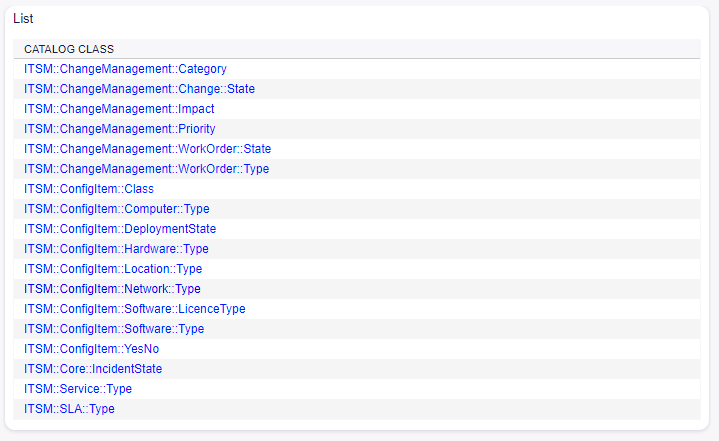
General Catalog Class List Screen
- ITSM::ConfigItem::Location::Type A class for location types, that can be selected in CMDB when adding
or editing configuration items of type location.
- ITSM::ConfigItem::Network::Type A class for network types, that can be selected in CMDB when adding
or editing configuration items of type network.
- ITSM::ConfigItem::Software::LicenceType A class for software license types, that can be selected in
CMDB when adding or editing configuration items of type software.
- ITSM::ConfigItem::Software::Type A class for software types, that can be selected in CMDB when adding
or editing configuration items of type software.
ITSM::ConfigItem::YesNo This class contains the items Yes and No.
CMDB Settings
After installation of the package a new group CMDB Settings will be available with a new module in the administrator interface.
Config Items
Use this screen to manage class definition of configuration item classes. The configuration item class management screen is available in the Config Items module of the CMDB Settings group.
- To add or edit the class definition of a configuration item class:
Select a class from the drop-down menu in the left sidebar.
Click on the Change class definition button.
Add or edit the class definition in YAML format.
Click on the Save or Save and finish button.
- To see the class definition of a configuration item class:
Click on a class name in the list of classes.
Select a version by clicking on a class name in the list of class versions.
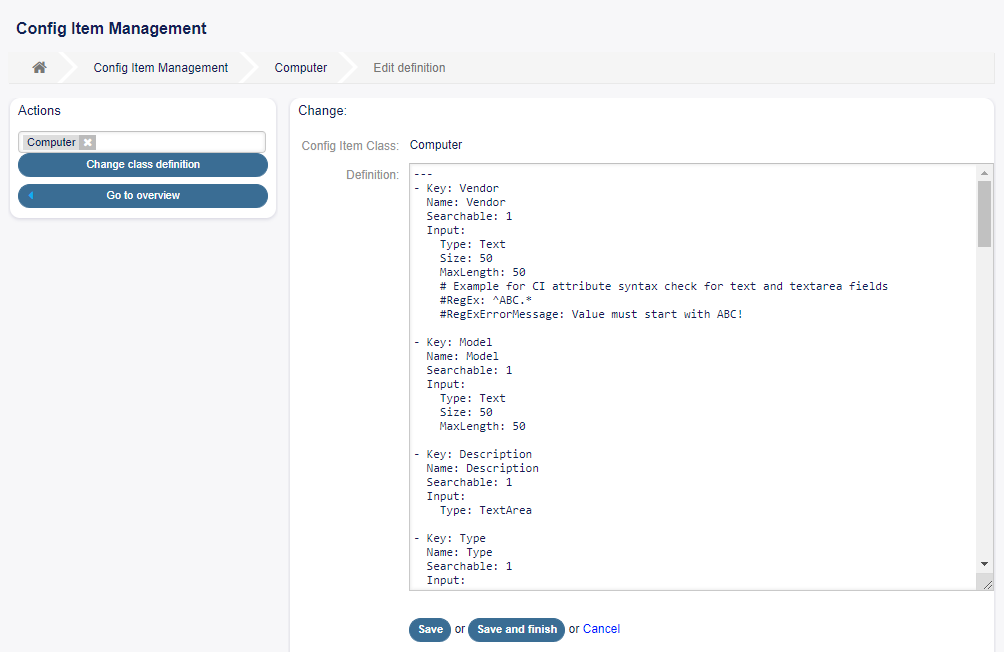
Edit Configuration Item Class Definition Screen
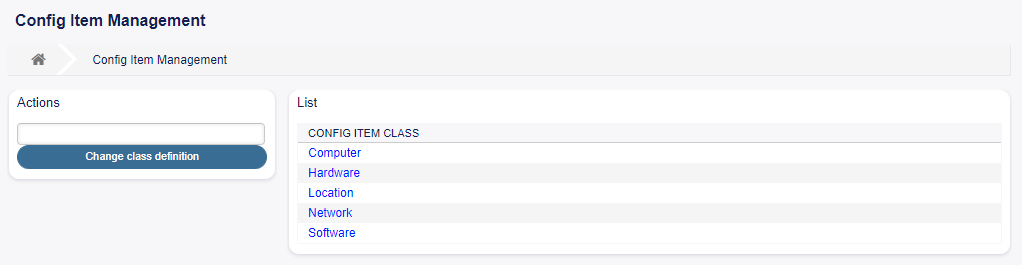
Configuration Items Overview Screen
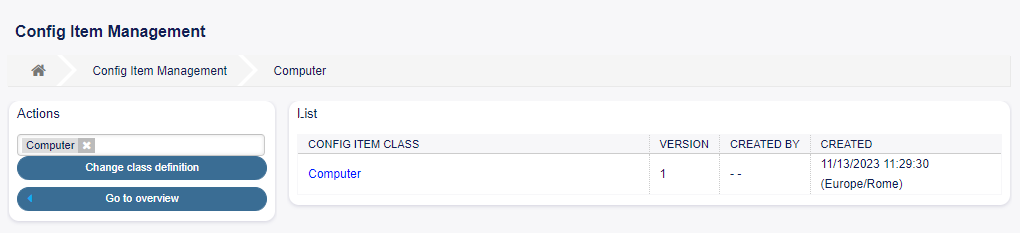
Configuration Items Versions Overview Screen
See also: New configuration item classes can be added in General Catalog module in the administrator interface.
Class Definition Types and Form Elements
Multiple input field types can be used when defining a class. These input field types are used to generate the edit form for creating new or editing already existing configuration items.
Warning
Class definitions have to be written in YAML format.
The following block is an example of a form field called Operating System.
The following settings are available when adding or editing this resource. The fields marked with an asterisk are mandatory.
- Key * Must be unique and only accept alphabetic and numeric characters. If this is changed, data will not
be readable from old definitions.
- Name * The label of the field in the form. Any type of characters can be entered to this field including
uppercase letters and spaces.
Note
It is recommended to always use English words for names.
See also: Names can be translated into other languages with custom translation files. See the Custom Translation File chapter in the developer manual.
Searchable Defines whether the field is searchable or not. Possible values are 0 or 1. Input * Initiates the definition of the input field. An input field can contain the following attributes:
- Type * Defines the type of the element. Must be placed indented as a logical block. Possible values
are: #. Text: A single text field. #. TextArea: A text field with multiple rows. #. GeneralCatalog: A drop-down list for select a general catalog class. The general catalog class must be defined before use it as input type. The items of the general catalog class will be the options of the drop-down list. #. CustomerCompany: A drop-down list for select a customer from the database back end. #. Customer: A drop-down list for select a customer user from the database back end. The field can be used with wildcards (*). #. Date: A field for select a date. #. DateTime: A field for select date and time. #. Integer: A drop-down list with integer numbers.
Required Defines whether the field is mandatory or not. Possible values are 0 or 1. Size Defines the size of the text field. The value must be a positive integer. MaxLength Defines the maximum amount of characters that can be entered in the text field. The
value must be a positive integer.
RegEx A regular expression to restrict the possible values of the text field. RegExErrorMessage The displayed error message if the input does not match to definition given in
the regular expression.
Class The name of the class to be used for the drop-down list. Required for type
GeneralCatalog. Translation Defines whether the items of a general catalog have to be translated. Possible valuesare: 0 or 1.
- YearPeriodPast Defines how many years in the past are available for selection from the present
year in a date or date/time field. The value must be a positive integer.
- YearPeriodFuture Defines how many years in the future are available for selection from the present
year in a date or date/time field. The value must be a positive integer.
ValueMin Defines the minimum value for an integer field. ValueMax Defines the maximum value for an integer field. ValueDefault Defines the default value for an integer field.
- CountMin Defines at least how many of the current input types are available. The value must be a positive
integer.
- CountMax Defines at most how many of the current input types are available. The value must be a positive
integer.
- CountDefault Defines how many field should be displayed by default. The value must be a positive
integer.
- Sub Defines a sub-element in the input field. The sub-element can contain its own input fields. It is useful
if you have certain properties under a main property.
- SuppressVersionAdd This can be used to suppress creating a new version of a configuration item, when
an attribute has changed. Possible values are
UpdateLastVersionandIgnore.UpdateLastVersion: If this value is set and there is no other updated attribute, the attribute isupdated in the current version without creating a new version.
Ignore: If this value is set and there is no other updated attribute, nothing will be done, and nonew version is created.
Class Definition Reference
The following class definition is an example for all possible options.
Note
The* CustomerID* and Owner are special keys, since these keys are used in Customer Information Center and Customer User Information Center to assign configuration items automatically to customers and customer users by default.
Agent Interface
This chapter describes the new features that are available in the agent interface after installation of the package.
Customers
After installation of the package a new widget will be available in the Customer Information Center and Customer User Information Center.
Customer Information Center
After installation of the package a new widget named Assigned CIs will be available in the Customer Information Center.
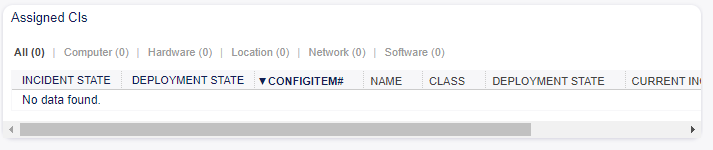
Assignet CIs Widget
This widget displays the configuration items that are assigned to the customer.
Configuration items can be filtered by clicking on a class name in the header of the overview widget. There is an option All to see all configuration items. The numbers after the class names indicates how many configuration items are in each classes.
The assignment is done via attribute CustomerID by default. If the configuration item uses different attribute
for linking, you should change it in the system configuration settings.
See also:
See AgentCustomerInformationCenter::Backend###0060-CIC-ITSMConfigItemCustomerCompany
system configuration setting for more information.
The default setting is:
You also need to have this CustomerID attribute in the class definition to display the assigned configuration
items. Check the existing class definitions in the Config Items module.
If your class definition doesn’t contain the CustomerID attribute, then you have to add it manually.
Customer User Information Center
After installation of the package a new widget named Assigned CIs will be available in the Customer User Information Center.
Assignet CIs Widget
This widget displays the configuration items that have this customer user as owner.
Configuration items can be filtered by clicking on a class name in the header of the overview widget. There is an option All to see all configuration items. The numbers after the class names indicates how many configuration items are in each classes.
The assignment is done via attribute Owner by default. If the configuration item uses different attribute for
linking, you should change it in the system configuration settings.
See also:
See AgentCustomerUserInformationCenter::Backend###0060-CUIC-ITSMConfigItemCustomerUser
system configuration setting for more information.
The default setting is:
You also need to have this Owner attribute in the class definition to display the assigned configuration
items. Check the existing class definitions in the Config Items module.
If your class definition doesn’t contain the Owner attribute, then you have to add it manually.
CMDB
After installation of the package a new menu will be available in the agent interface.
Note
In order to grant users access to the CMDB menu, you need to add them as member to the group itsm-configitem.
The menu items that were added by this package will be visible after you log-in to the system again.
This screen gives an overview of configuration items. Configuration items have an Incident State column, which includes two state types:
Operational
Incident
For each state type, any number of states can be registered. The state of a configuration item affects the service state, which will be dynamically calculated and displayed in the Service screen of the agent interface.
See also: To enable the dynamic calculation, activate the following system configuration settings:
ITSMConfigItem::SetIncidentStateOnLink
ITSMConfigItem::LinkStatus::TicketTypes
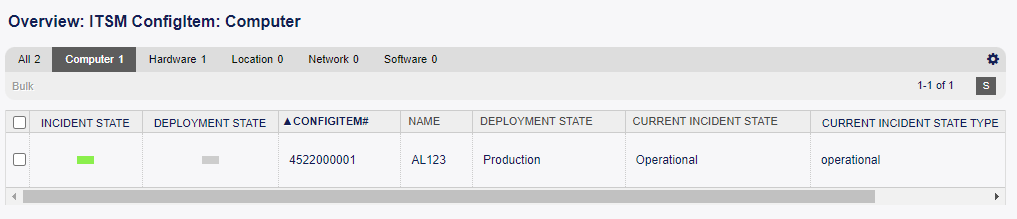
CMDB Overview Screen
Configuration items can be filtered by clicking on a class name in the header of the overview widget. There is an option All to see all configuration items. The numbers after the class names indicates how many configuration items are in each classes.
- To limit the number of displayed configuration items per page:
Click on the gear icon in the top right corner of the overview header.
Select the maximum number of configuration items displayed per page.
Click on the Submit button.
- To see the details of a configuration item:
Click on the row of a configuration item.
The Configuration Item Zoom screen has an own menu. Back This menu item goes back to the previous screen.
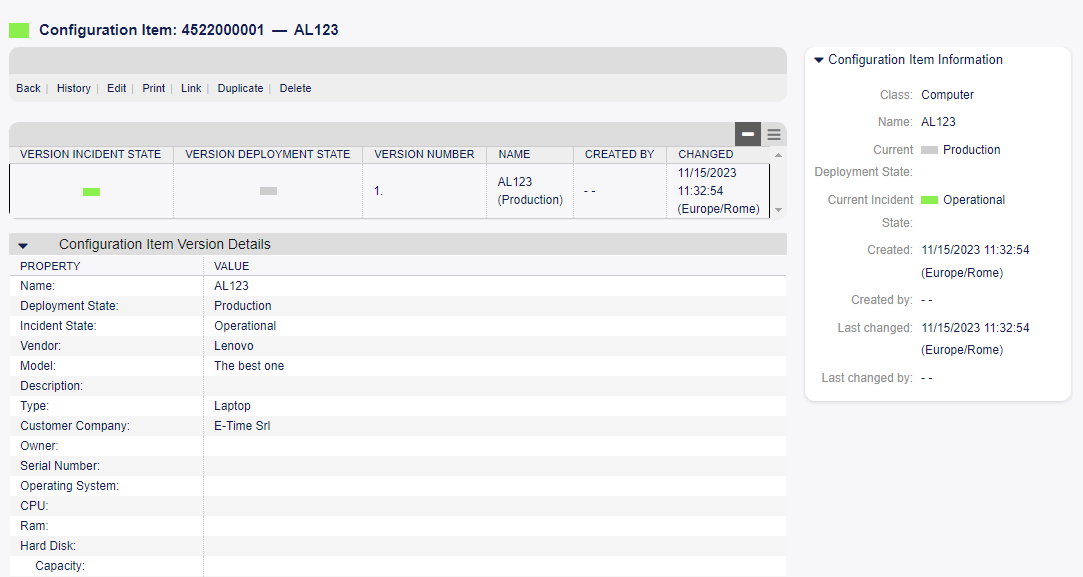
Configuration Item Zoom Screen
History This menu item opens a new window to see the history of the configuration item.
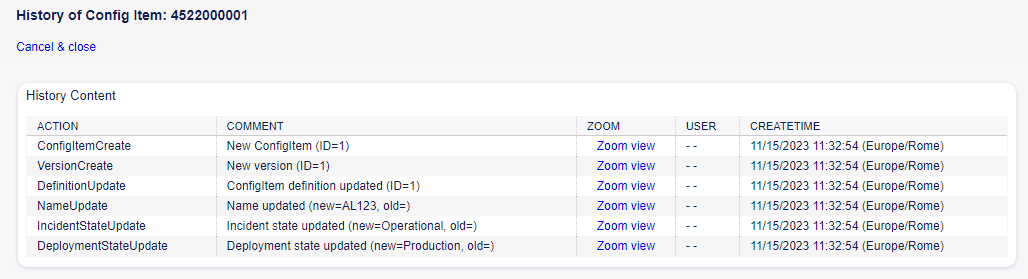
Configuration Item History Screen
Edit This menu item opens a new window to edit the configuration item.
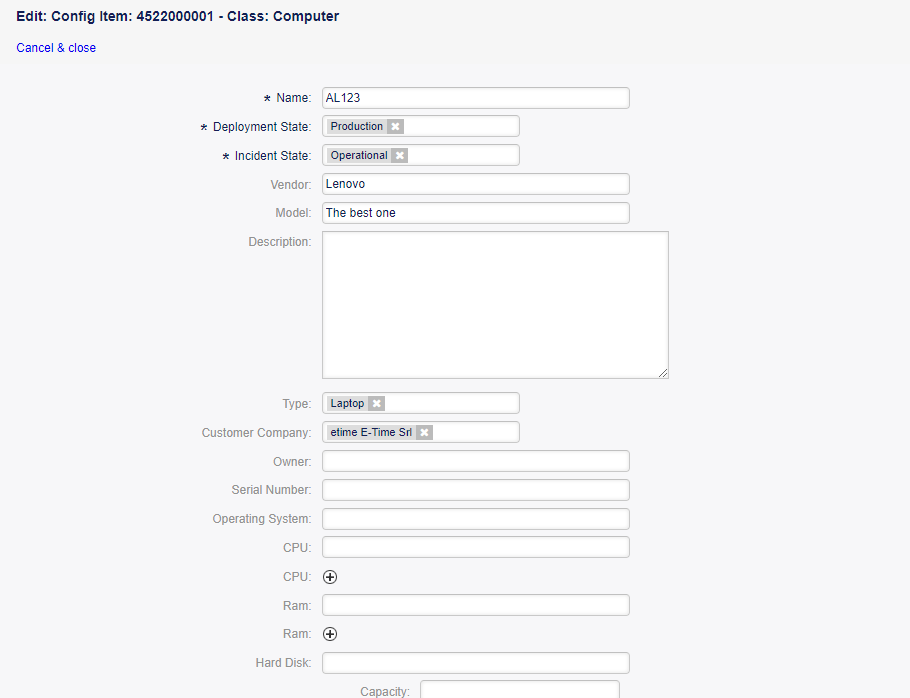
Configuration Item Edit Screen
- Print This menu item opens a PDF file to show the printer friendly version of the screen. You can save or
print this PDF file.
- Link This menu item opens the standard link screen of Rexpondo. Configuration items can be linked to any other
objects like FAQ articles, services, tickets or configuration items. Existing links can also be managed here.
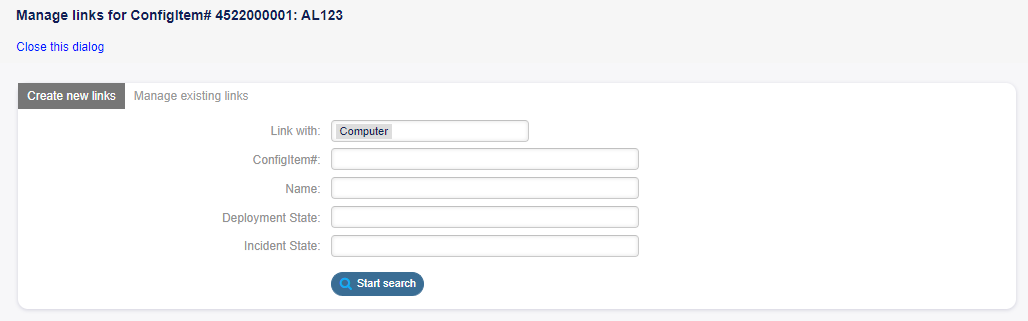
Configuration Item Links Screen
- Duplicate This menu item opens a new window to duplicate the configuration item. This screen is the same
as the edit screen, but clicking the Save button will create a new configuration item instead of modify the current one.
Delete This menu item opens a modal dialog to confirm the deletion of configuration item.
Use this screen to add new configuration items to the configuration management database.
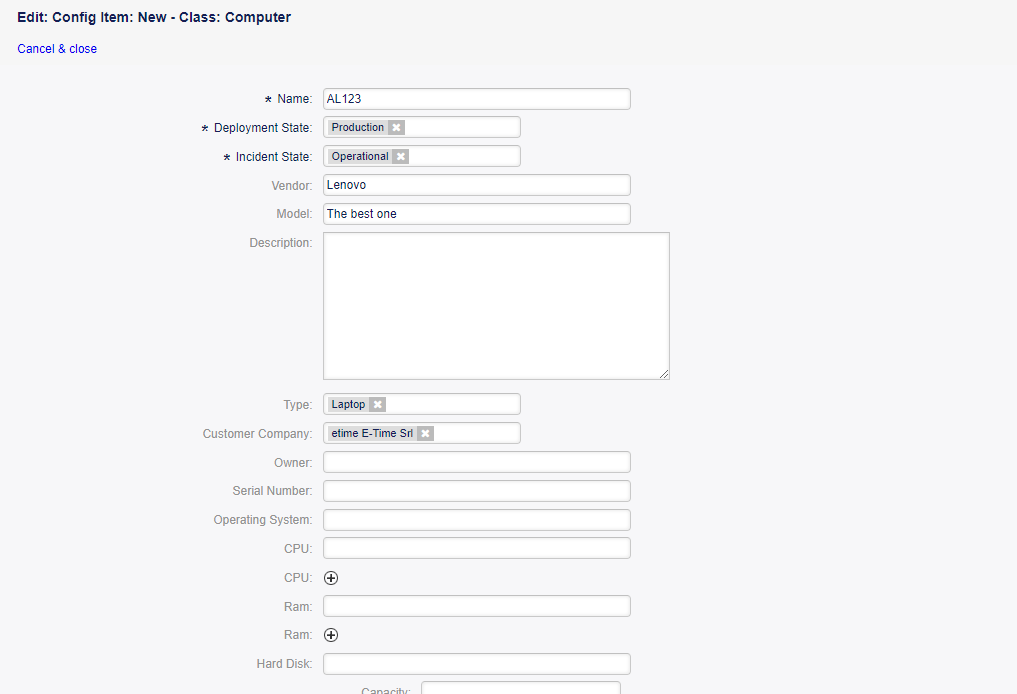
Configuration Item Duplicate Screen
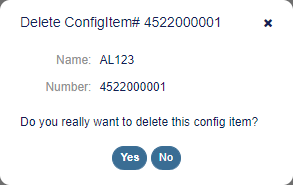
Configuration Item Delete Screen
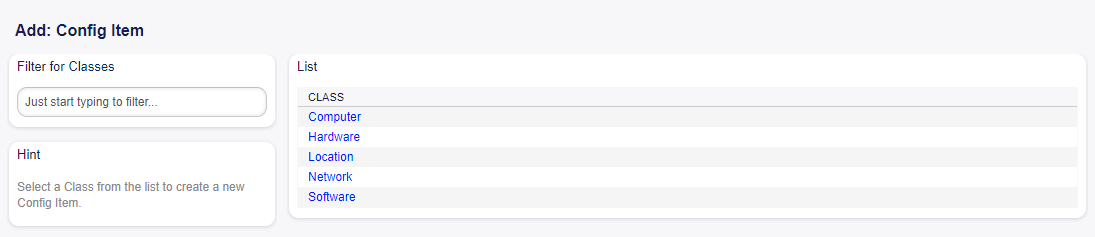
Configuration Item Add Screen
- To add a configuration item:
Select a class from the list of classes.
Fill in the required fields.
Click on the Save button.
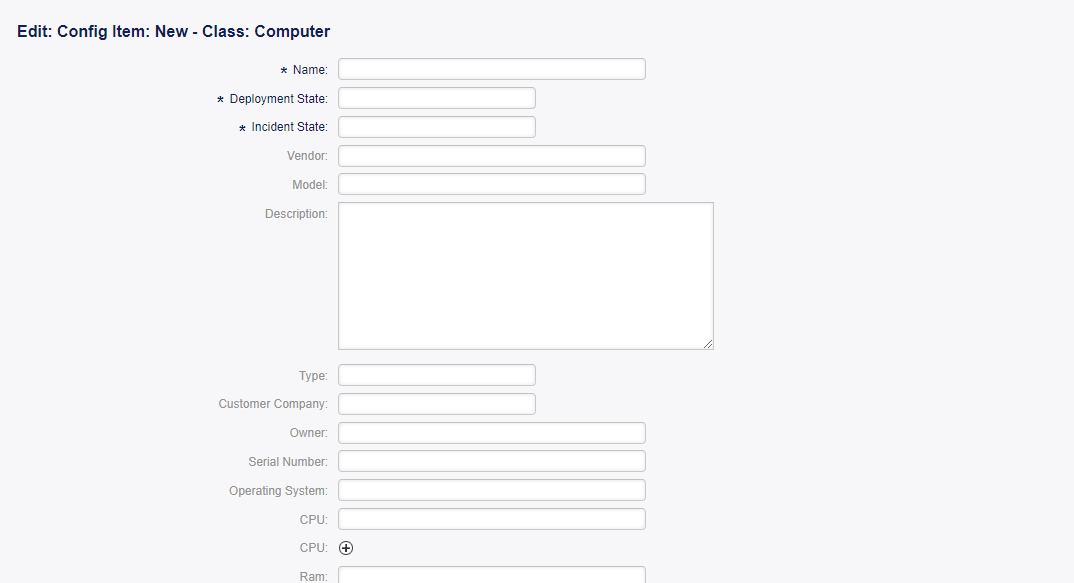
Configuration Item Add Computer Screen
See also: The fields in the Add Configuration Item Screen can be very different on each classes. To see the available fields, check the Config Items module in the administrator interface.
Use this screen to search for configuration items.
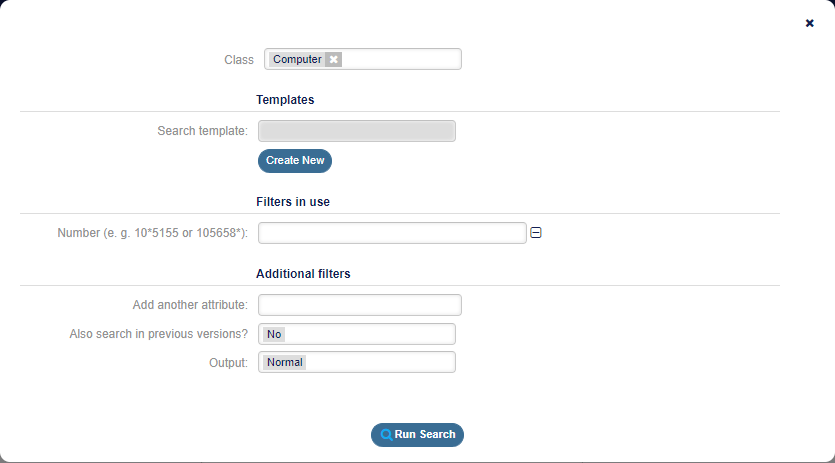
Configuration Item Search Screen
- To search for configuration items:
Click on the Search menu item in the CMDB menu.
Select a class from the drop-down field.
Fill in the required fields.
Click on the Run Search button.
See the search result.
External Interface
This package has no external interface.